
Goals
- Configure your organization / operational area (regional planning commission, state operational area, municipality, utility, etc.) as a federated GIS-resource publisher in the VT Open Geodata Portal—a one-time setup.
- Publish a GIS resource to the VT Open Geodata Portal.
Note
VCGI is happy to assist publishers. Send questions to vcgi@vermont.gov.
Technical Overview
The VT Open Geodata Portal is an open-geodata site that’s built on the ArcGIS Open Data and ArcGIS Hub capabilities of ArcGIS Online. Open Data is served to portal users via the ArcGIS Hub platform. Federated portal publishers share their GIS resources to the portal via ArcGIS Online Open Data groups.
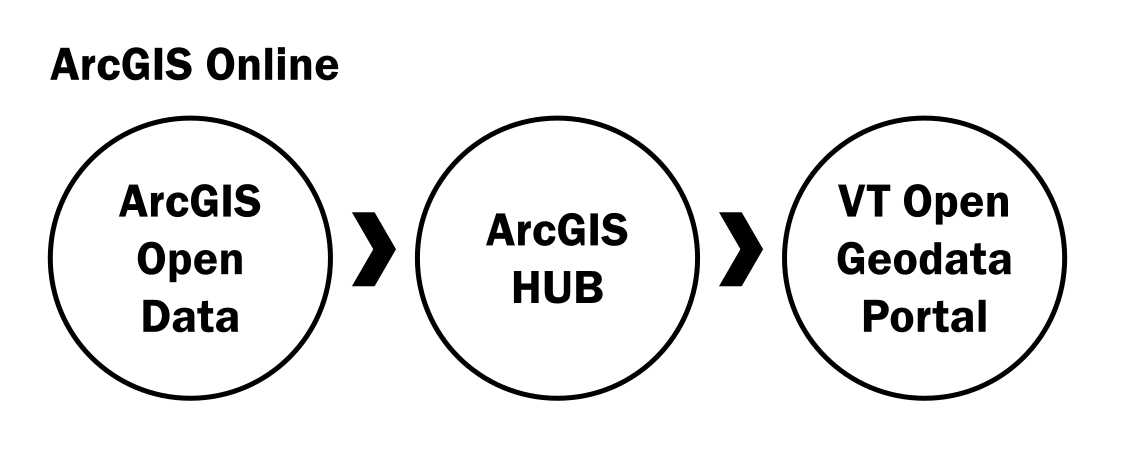
Configure Your Organization (One-Time Setup)
What You Need
- A good-faith willingness to follow this guide, as well as standards and guidelines crafted by the VT Center for Geographic Information and approved by Vermont’s Enterprise GIS Consortium (EGC).
- An ArcGIS Online account in your organization / operational area that’s a member of the default Administrator role (or at least certain administrative roles). The account is needed for required administrator-level configuration.
Alternatively, an ArcGIS Online account in your organization / operational area that’s member of custom roles that include the following administrative privileges needed for this configuration can be used:
- Organization Settings > Organization website (administrative)
- Organization Settings > Security and infrastructure (administrative)
- Members > Manage categories (administrative)
- Sharing > Make groups available to Open Data (general)
For simplicity, whether this account is a default-Administrator-role account or a custom-roles account, it’s hereinafter referred to as the admin account.
- An ArcGIS Online account intended to own an ArcGIS Online group from which GIS resources are to be shared from your organization / operational area to the portal. In some organizations / operational areas—e.g., a small organization that has one ArcGIS Online account, the admin account can also be used as this account.
This account requires privileges for publishing data to ArcGIS Online and sharing content with ArcGIS Online groups. Therefore, it must at least be a Creator user type and must be in the Publisher default role (or be in a custom role that has privileges necessary for publishing and sharing content).
For simplicity, this account is hereinafter referred to as the publisher account.
Warning
Use a generic-name account (i.e., Services_VCGI)—instead of a person-name account. Make sure the account’s profile is set to public (otherwise, in the portal, content shows as published by the given user name alongside a label stating Private Member).
To set the profile to public:
ArcGIS Online > Profile > Profile Visibility > Everyone (public)
- From VCGI (vcgi@vermont.gov), obtain and save a short string referred to as a node tag (i.e., nodeVCGI). This is a tag to be assigned to items in the portal that indicates the publishers (nodes) associated with published resources. [More on tagging later]
Steps
- Log into ArcGIS Online with the admin account.
- Organization > Settings
- Select Open Data in the side panel.
- Switch Enable Open Data on. [More info on enabling Open Data]
- Organization > Settings > Items > Metadata
- For Enable metadata for your organization, switch the slider on. Choose a Metadata style that is both suitable for your Organization and is on accord with the VT GIS Metadata Standard and Guidelines (e.g., FGDC CSDGM Metadata, or North American Profile of ISO 19115 2003). This setting determines the style in which metadata is presented for your Organization’s items in the VT Open Geodata Portal; it also determines the metadata fields that are presented and edited in ArcGIS Online. [More info on enabling metadata]
- Content categories support discovery of items (subject searches) in ArcGIS Online. If content categories haven’t already been set up for your Organization: Content > Categories (on the left side) > Click pencil ✏️> Configure content categories
- IF an admin account is NOT being used for BOTH administration and sharing resources to the portal: Organization > Settings > Security > Policies > Sharing and searching > For Members who are not administrators can make their content, groups, and profile public., switch the slider on.
- IF an admin account is NOT being used for BOTH administration and sharing resources to the portal, log out and log back into ArcGIS Online with the publisher account.
- Groups > Create group
- Fill Name and Summary. This group is to become the conduit for publishing GIS resources to the portal; use an intuitive name with which you are comfortable using over the long term (i.e., MyUtilityCompany Open Data).
- Consider adding a thumbnail.
- Who can view this group?: Everyone (public)
- Who can be in this group?: Consider selecting Any organization's members. Doing so allows members of partner organizations to easily browse your Organization’s open data by going through the group in ArcGIS Pro or ArcGIS Online; this doesn’t, by default, allow members of other Organizations to contribute content. Otherwise, select My organization's members only.
- How can people join this group?: If allowing any Organization’s members to join the group, select By request or By adding themselves—depending on your preference. Otherwise, leave the default.
- Who can contribute content?: Group owner and managers
- Save. For simplicity, this group is hereinafter referred to as the open data group.
- IF an admin account IS NOT being used for BOTH administration and sharing resources to the portal, log out and log back into ArcGIS Online with the admin account.
- Groups > My organization’s groups > Click on newly created group > Settings > Group designations > For Allow this group to be accessed in Open Data sites., switch the slider on.
How a GIS Resource is Published to the Portal
At a high level, publishing a GIS resource to the VT Open Geodata Portal involves five steps:
- The What. Identify the resource you need to publish (e.g., a vector dataset, a table, etc.).
Warning
Avoid re-publishing data that’s published by another Organization (data originator). A benefit of having an open geodata portal and making GIS resources web-accessible is the ability to directly tie (mash up) data from multiple Organizations together in one map/app—without needing to make copies. This doesn’t preclude certain case-by-case needs to make derivative data or significantly value-added data (when accord with an originator’s terms of use).
- The How. Determine the ArcGIS Online item type (Feature Service/Layer, GeoJSON, CSV, etc.) via which the resource is to be shared. [More on choosing an item type later]
- The Item. Create an ArcGIS Online item that serves the resource and can plug-and-play into ArcGIS Open Data / ArcGIS Hub.
- The Requirements. Make sure that the item meets certain portal requirements (e.g., tags, categories, metadata, etc.).
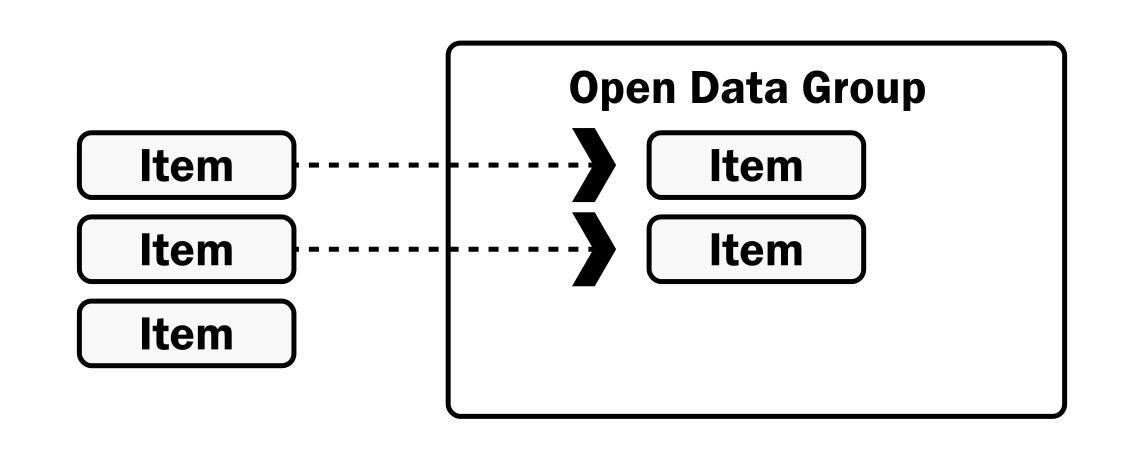
- Share. Share the item with Everyone and the open data group; it then immediately becomes available in the portal.
Supported ArcGIS Online Item Types
Several ArcGIS Online item types are supported in ArcGIS Open Data / ArcGIS Hub—however, some have limitations or require certain unique configuration for plug-and-play into the VT Open Geodata Portal. This guide doesn’t have step-by-step guidance for publishing all of the item types; it does provide guidance for the most frequently-used portal item types.
Certain portal requirements apply to all items in the portal—regardless of item type.
Which ArcGIS Online Item Type to Use
The following decision-support tree provides general guidance on which ArcGIS Online item type to use according to the type of resource to be published.
IF resource type is: Vector (or tabular) data that’s:
- to be highly demanded or has complex geometry (e.g., a lot of vertices),
- is located in an enterprise geodatabase or is file-based (e.g., file geodatabase or shapefile), or is already an ArcGIS Online Feature Service (AKA Feature Layer),
- and needs to be published with RESTful web-mapping capability.
THEN consider using an ArcGIS Online Feature Service (AKA Feature Layer) item type.
NOTES
- In order to provide a convenient end-user download experience in the portal for a Feature Layer (ability to dynamically download data in various formats with the click of a button), the Feature Layer must be a one-layer (or one-table) Feature Layer. Although a multi-layer (or multi-table) Feature Layer can be published to the portal, the download buttons for various formats don’t appear in that scenario.
- Although modern formats such as file geodatabase allow field-name lengths to be greater than ten characters, when a shapefile is dynamically downloaded from the portal from an item with field names that exceed ten characters, field names are dynamically truncated in the download.
Warning
A Feature Layer with a high number of fields with field names that exceed ten characters has been known to not work in the portal when downloading in shapefile format.
IF resource type is: ArcGIS Server Map Service layer.
THEN use an ArcGIS Server Map Service layer ArcGIS Online item type (lists as Feature layer in ArcGIS Online, but is actually an ArcGIS Server Map Service Layer).
NOTES
- This is a legacy workflow.
- This workflow is based on a Map Service’s individual layer level (e.g., a Map Service REST URL that ends with a layer number), not the Map Service level.
- The end-user download experience in the portal provides fewer download formats (no file geodatabase, no GeoPackage, etc.) when an ArcGIS Server Map Service layer is used than when a Feature Layer is used.
- This workflow can be less performant for downloads than use of a Feature Layer, especially with data that periodically changes—as ArcGIS Online has to reach out to the ArcGIS Server to synchronize.
IF resource type is: Vector data layer that:
- is to be in low demand, but has a use case,
- has simple geometry (e.g., not a lot of vertices),
- needs to be drop-ready on web maps, but not necessarily RESTful nor plug-and-play in ArcGIS Pro,
- and works for end users if it’s served via the WGS 84 GCS spatial reference.
THEN consider using a GeoJSON ArcGIS Online item type.
NOTES
- This alternative workflow can help you stay within your ArcGIS Online credit budget, as it uses file storage, not feature storage.
- A GeoJSON file directly plugs and plays with QGIS. However, in ArcGIS Pro, a tool such as JSON To Features (Conversion) needs to be used to export GeoJSON to a format that ArcGIS Pro can render.
IF resource type is: A non-spatial table that:
- is to be in low demand, but has a use case,
- and doesn’t need to be RESTful, just available.
THEN consider using a CSV ArcGIS Online item type.
NOTES
- This alternative workflow can help you stay within your ArcGIS Online credit budget, as it uses file storage, not feature storage.
Note
Do you need to publish a raster resource or a resource that’s oriented more for streaming as a service than for data download (e.g., an ArcGIS Online Tile Layer)? Reach out to VCGI (vcgi@vermont.gov) for guidance tailored to less-common workflows.
Publish a GIS Resource to the VT Open Geodata Portal
What You Need
- The What. Identify the resource you need to publish.
- The How. Determine the ArcGIS Online item type via which the resource is to be shared. For sharing as a Feature Layer, this guide walks through the steps for publishing a Feature Layer via ArcGIS Pro; however, there are other workflows for publishing a Feature Layer (e.g., uploading a zipped file geodatabase).
- Name of your open data group.
- ArcGIS Online account with privileges that allow adding items to open data group (i.e., the publisher account).
- Have the VT Metadata Standard and Guidelines and VT Open Geodata Portal Tagging Standard handy.
Steps
- IF Publishing as a Feature Layer. If the resource is being published as a Feature Layer, follow these steps, in the given order:
- ArcGIS Pro. Log into ArcGIS Online with the account that is to own the Feature Layer.
- Add feature class or table.
- Because the output Feature Layer should have only one layer (or one table) with that one layer (or table) having a layer ID of 0:
Map properties > General > Uncheck Allow assignment of unique numeric IDs for sharing layers
- If the feature class or table contains metadata (metadata baked into the feature class or table via ArcGIS), that metadata can be automatically carried along for the ride from source to Feature Layer via:
Layer Properties > Metadata > Show metadata from data source (read-only)
- Visibility can be set to off by default. Alternatively, set visibility on and symbolize the layer.
Note
Within the portal, regardless of the Feature Layer’s symbology, the Feature Layer is symbolized with blue. However, when the Feature Layer is rendered outside of the portal, its given symbology is shown by default.
- Name the feature class or table with the desired REST name—not the presentation-oriented title, which can be set after the Feature Layer is created. If your organization has a standard pattern for naming Feature Services (i.e., FS_UtilityCompany_OPENDATA_pipelines), this is the step to make that happen.
- If the feature class isn’t suitable for rendering below a certain scale due to characteristics such as its quantity of features and level of detail, set a minimum scale (e.g., 1:3,000,000).
- Right-click layer or table > Sharing > Share As Web Layer (or Share As Table)
- Enter tags per VT Open Geodata Portal Tagging Standard.
- For service folder, select a folder, if needed. This is where the Feature Layer is created, along with its Service Definition.
- Configuration > Configure Parameters > Settings > Uncheck Ensure map is set to allow assignment of unique IDs
- Analyze.
- Publish.
- In a browser, log into ArcGIS Online with the account that owns the Feature Layer to examine results. Two new objects should be in Content—the new Feature Layer’s Service Definition and the new Feature Layer itself.
Warning
Don’t delete the Service Definition, because if you do, you won’t be able to overwrite the service by republishing from ArcGIS Pro.
- IF Publishing as a GeoJSON Item. If the resource is being published as a GeoJSON item, follow these steps, in the given order:
- Export the resource to a GeoJSON file. This can be done in ArcGIS Pro via the Features To JSON (Conversion) tool (use the option that projects features to WGS 84, which is in the GeoJSON standard specification).
- In a browser, log into ArcGIS Online with the account that is to own the GeoJSON item.
- Content > New item > Drag and drop in the GeoJSON file.
- Select the option to add the GeoJSON file only.
- Next.
- Fill a Title.
- For Folder, select a folder, if needed. This is where the GeoJSON item is to be created.
- Assign one or more Categories.
- Assign Tags, per VT Open Geodata Portal Tagging Standard.
- Save.
- IF Publishing as a CSV Item. If the resource is being published as a CSV item, follow these steps, in the given order:
- If necessary, export the resource to a CSV file.
- In a browser, log into ArcGIS Online with the account that is to own the CSV item.
- Content > New item > Drag and drop in the CSV file.
- Select the option to add the CSV file only.
- Next.
- Fill a Title.
- For Folder, select a folder, if needed. This is where the CSV item is to be created.
- Assign one or more Categories.
- Assign Tags, per VT Open Geodata Portal Tagging Standard.
- Save.
- Make sure that the new item meets VT Open Geodata Portal requirements by opening the new item’s details page and following these steps:
- Metadata. The item details page is tightly-coupled with the item’s underlying metadata; some edits made on the item details page are stored in the underlying metadata, and some edits made to the item via the ArcGIS Online Metadata Editor (the Metadata button) are reflected on the item details page.
The portal metadata requirement applies to all items that serve the end-user data-download experience; make sure that such items’ metadata is on accord with the VT Metadata Standard and Guidelines. Otherwise, if an item is served only as a data-streaming/web-service resource (e.g., an ArcGIS Online Tile Layer), metadata isn’t required (albeit, population of some metadata fields can add substantial value to the information shown on the item’s details page).
Warning
In the ArcGIS Online Metadata Editor, when a metadata XML file is overwritten to the item’s metadata, pre-existing tags on the item details page get wiped out! Preserve pre-existing tags by copying them to a text editor before the metadata overwrite and pasting them back to the item details page after the metadata overwrite.
Warning
The presentation of dates—Published Date, Data Updated date, and Info Updated date—for an item in the portal is important. Those dates are called from the item’s metadata. Getting correct dates to display in the portal is tricky; the VT Metadata Standard and Guidelines provides directions on controlling the dates that are displayed.
- If not done already, assign tags to the new item according to the VT Open Geodata Portal Tagging Standard.
- Make sure any necessary Terms of Use are filled, if not already filled via metadata.
- Assign a Title. Enter a short title that describes the item (it’s recommended to include VT in the title, because when an item is discoverable in the VT Open Geodata Portal, it’s also discoverable throughout ArcGIS Online (Everyone). If the item’s data is limited in extent, other information such as county or town name should be included.

Example of Title: VT Data - Public Libraries - Add a thumbnail. A standardized set of thumbnail templates is available from VCGI (vcgi@vermont.gov).
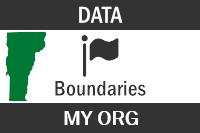
Example thumbnail - Assign one or more Categories to the item.
Note
Categories support subject searches, while Tags support keyword-like searches.
- To prevent accidental deletion of the item:
item details page > Settings > Deletion Management > Check Prevent this item from being accidentally deleted. on > Save
- item details page > Settings > General > Extent (extent might already be automatically set okay)
- IF the item is a Feature Layer: item details page > Settings > Feature Layer (hosted) > Export Data > Check Allow others to export to different formats. on (this makes more download formats available).
- IF the item is a Feature Layer: To protect accidental deletion of the item’s parent Service Definition:
Service Definition item details page > Settings > Deletion Management > Check Prevent this item from being accidentally deleted. on > Save
- Metadata. The item details page is tightly-coupled with the item’s underlying metadata; some edits made on the item details page are stored in the underlying metadata, and some edits made to the item via the ArcGIS Online Metadata Editor (the Metadata button) are reflected on the item details page.
- Share the item to Everyone (public) and to the open data group (via Set group sharing); this immediately makes it available in the VT Open Geodata Portal.
Note
If the item owner doesn’t have permission to add the item to the open data group, sharing the item to the open data group can be done via an account that has the necessary permission (e.g., the publisher account).
APPENDIX A - How To Update an ArcGIS Online Feature Layer by Deleting Rows & Appending Rows
Goal
Without altering an ArcGIS Online Feature Layer’s schema, update its data using a delete-rows/append-rows approach (using ArcGIS Pro and ArcGIS.com). The approach first deletes all rows from a layer (leaving it as an empty schema, or shell); then the layer is updated (appended) w/ rows from a source dataset.
ReadMe Notes
- In this how-to, the term Feature Layer means a Feature Layer (Feature Service) that contains one or more layers; in other words, it means the top level (Feature-Service level) of a Feature Layer. Layers within a Feature Layer are referred to as sublayers.
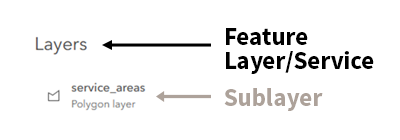
Warning
Make sure you clearly identify the Feature Layer and sublayer to be updated; if the prior version of the Feature Layer needs to be retained (e.g., for a roll-back-from-error option or an archived version), make a copy of it before conducting this how-to.
Warning
This procedure might not be suitable for very large datasets.
Tip
ADVANCED: This delete-rows/append-rows approach is also scriptable using the ArcGIS API for Python. [example] [another example]
What You Need
- ArcGIS Pro.
- ArcGIS Online account that owns the Feature Layer (or has permission to edit it).
- New data—as a zipped file geodatabase or a zipped shapefile—with same schema as sublayer to be updated.
Steps
- In ArcGIS Pro—log into ArcGIS Online as owner of the Feature Layer (or with account that has permission to edit it). Add the Feature Layer’s sublayer to be updated to a map.
- Select all and delete all features of the sublayer—leaving the sublayer as an empty schema (no rows). Save edits. Close ArcGIS Pro.
- In a browser, log into ArcGIS.com as the owner of the Feature Layer to be updated.
- Go to the item details page of the Feature Layer.
- Update Data > Add features > Next
- If the Feature Layer has more than one sublayer, a prompt to choose sublayer to be updated should appear.
- Browse to and select a zipped file geodatabase or a zipped shapefile that contains the new data. Select in the File type dropdown accordingly. Click Next.
- If necessary, change how fields in the new data match the sublayer’s schema; there is a variety of possible reasons for a scenario where not all fields can match (e.g., a shapefile has truncated field names due to its field-name-length requirement).
- Add and complete.
- If the new features have a different extent than the old features (i.e., the old data extends across one town and the new data extends across three towns), the Feature Layer’s extent might need to be reset and its spatial index should be rebuilt. To check/reset the extent and rebuild the spatial index, follow these steps:
- Go to Feature Layer’s item details page.
- Settings tab > Extent section > Edit Extent
- Multiple options for setting the extent appear. If the extent needs to be changed, a recommended option is to draw or enter coordinates of a bounding box around subject area (e.g., state).
- Save.
- Manage indexes section > Rebuild Indexes
- Select the updated sublayer. Rebuild.
- Make sure the Feature Layer’s metadata (in Metadata Editor) and item details page (Description, Tags, etc.) are on accord w/ the update (e.g., Data Updated date). [VT Metadata Standard and Guidelines]